From disabling read receipts to bookmarking important messages, there are plenty of not-so-obvious tricks you can learn to make your favourite mobile IM app more useful than ever. Turns out that there are a lot of features that were added by the instant messenger service that a lot of it's users still aren't privy to. So as always, you didn't ask us to but we're going to tell 'em to you anyway.
11 Awesome Things You Probably Didn’t Know You Could Do On Whatsapp
By
Editorial Staff in
Science and Technology
On 14th May 2016
advertisement
#1 You can bookmark messages by starring them.
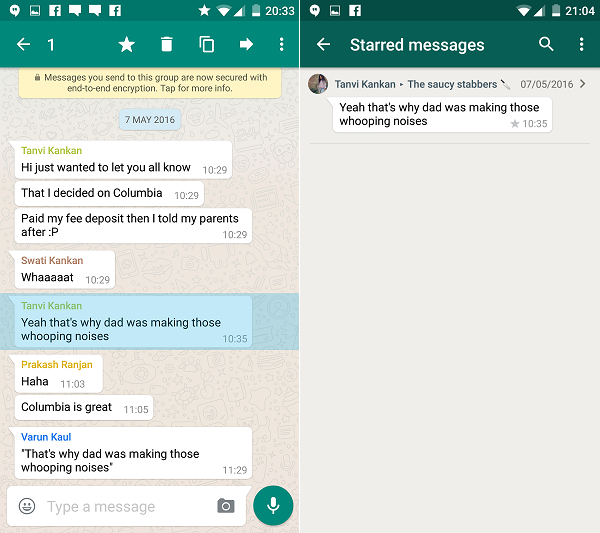
Say you have to go to a birthday party but your friends address is lost somewhere in the 200+ messages in the group chat called "Pappu's birthday!" Well, instead of going through all the inane bullshit till you find it, you can star important messages by long pressing them and clicking on the star icon. Then when you need to find them, go to settings and click on starred messages. Viola!
#2 You can disable your last seen and those dreaded blue ticks.
We know how it is. You're at figure skating practice, your phone buzzes, and you glance down briefly before nailing a spectacular triple axel.
Clearly, you've not got time to respond immediately. But at the same time, you don't want the sender to realise that you've already looked at the message, lest they think you're ignoring them when you fail to reply for two more hours. That's the privilege the blue ticks take away.
Recently though, the chat app has realised the error of its ways and silently come up with a workaround. The liberty of message-mulling is ours again.
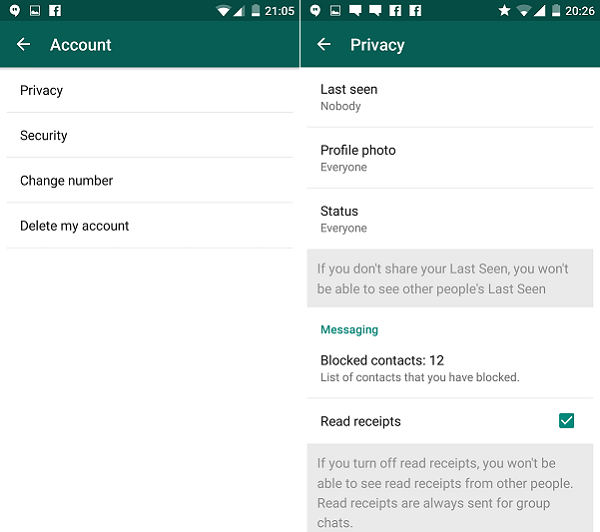
Simply go to Privacy and change your 'Last Seen to Nobody and uncheck the box which reads Read Receipts and you're good to go.
advertisement
#3 You can use WhatsApp on your internet browser.
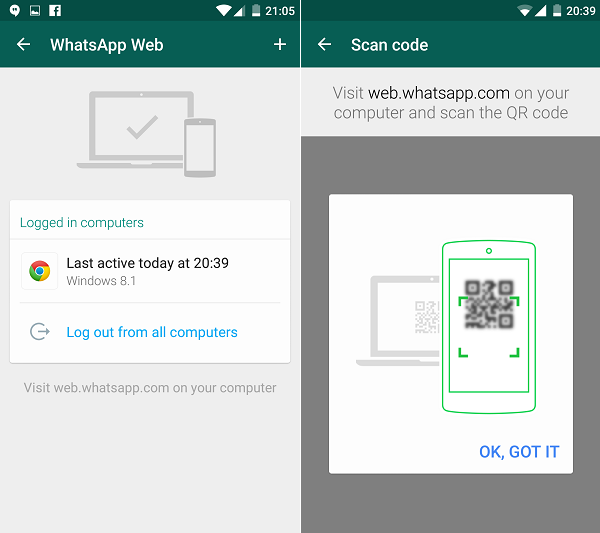
Are your thumbs to big for that tiny little touch keyboard on the screen? Well, worry no more you thick fingered freak because there is a solution and it's called WhatsApp Web. Open the browser to the WhatsApp Web page and a QR code will appear. Go to settings on your WhatsApp, select the option for WhatsApp Web and scan the code and start chatting.
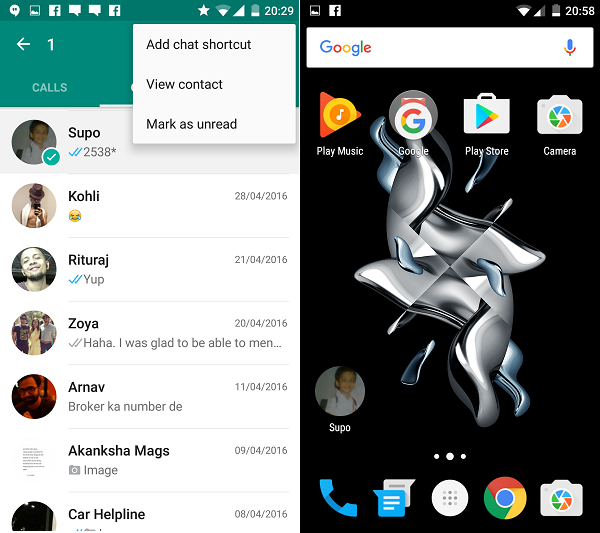
#4 You can create shortcuts for conversations.
If there are certain people you chat to more often, it might be a good idea to create a shortcut for them directly on your homescreen, so you don't have to keep opening and closing WhatsApp.
How: Tap and hold on the chat (group or individual) of your choice and a tab will pop up. Select the Add Conversation Shortcut option and the chat in question will appear as the person's profile photo on your mobile desktop. Unfortunately this only applies for Android users and not iPhone ones. Sorry guys.
advertisement
#5 You can now see when your messages were read.
Think the double-blue ticks are the worst thing to happen to relationships since Tinder? Think again. Here's another way you could annoy your loved ones.
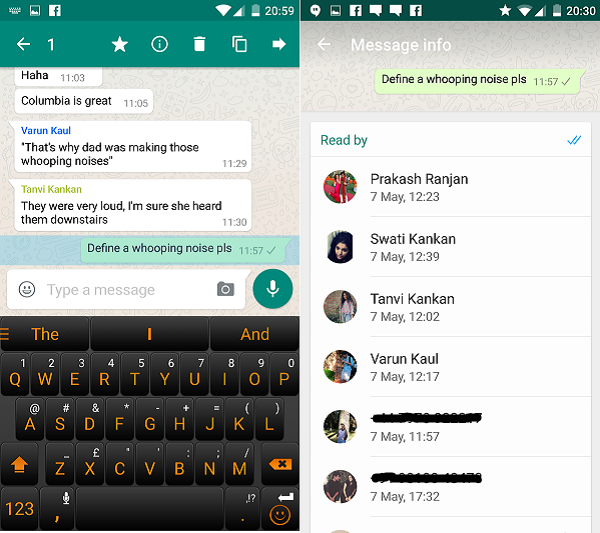
In addition to finding out the exact time your messages are delivered, you can also choose to see the exact time your message was read (assuming you choose to stick with the ticks).
How: Go to any of your WhatsApp chats, tap and hold on any of the messages you've sent in that chat, followed by the Info option. For iOS users, you can also drag towards the left to reveal a window which will show the time your message was delivered and subsequently read.
It works for group messages too, with the window listing the time each participant read the message.
advertisement
#6 You can now find out exactly where your friends are.
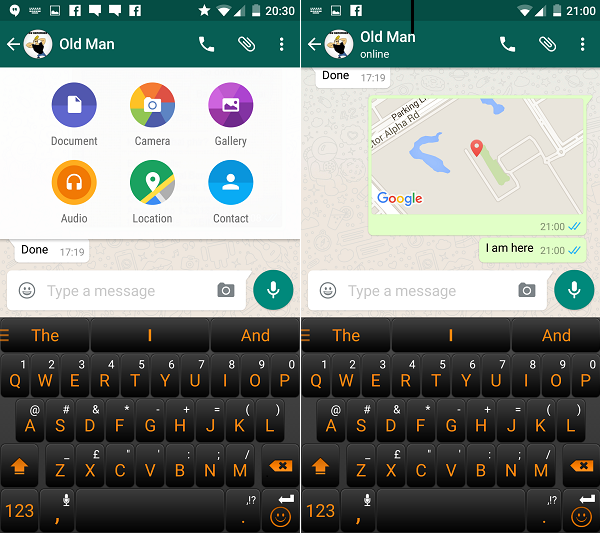
We've all been a victim of that "on the way" lie when the person in question is still in bed. To prevent yourself from ever getting duped again, insist that the contact shares their current location with you by tapping on the arrow icon next to the text box and then Share Location. There's also a way of preventing them from manually entering their location...
How: The way the location appears is a clue. If it's a real GPS-based location, the location share will appear as a dropped pin, but if it's a location they entered, its address will appear beside the dropped pin. Feel free to call them out on it.
advertisement
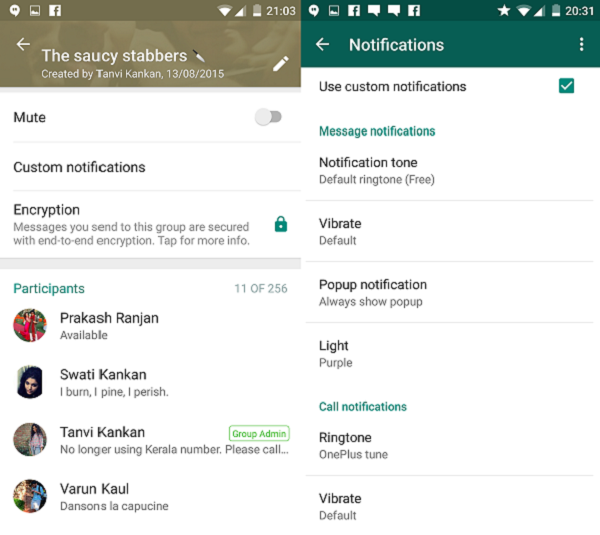
#7 You can set custom notification tones for different chats.
Now you can know who has sent you a message without even looking at the screen. Important group chats, your boss or your mother, you can no set custom notifications tones for all of them. Simply click on the options button at the top left of the chat and go to view contact/group info and then go to Custom Notifications.
advertisement
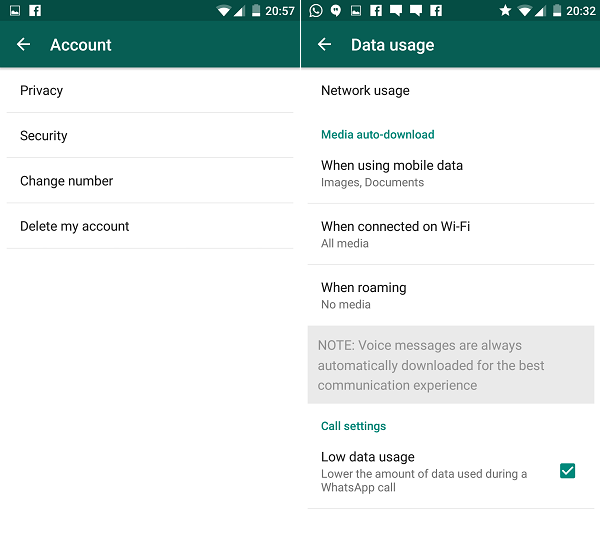
#8 You can save your mobile data by tweaking a few settings.
Since the arrival of 3g and 4g, you no longer need to be tethered to a wifi router. You have fast internet on the go. But even so, that doesn't mean you want to blow your entire data as fast as possible, right? Simply go to settings and then to data usage. You can customize your date options options to your liking.
advertisement
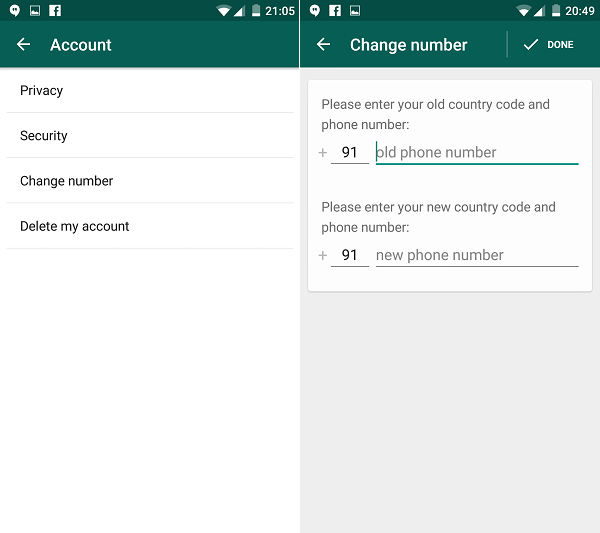
#9 You can tie the app to your number.
Never lose your contacts ever again. Even if you buy a new phone, you can choose to tie the application to your new phone number. By choosing not to do that, you can continue using WhatsApp with your new some and old contacts, provided you had backed them up of course.
advertisement
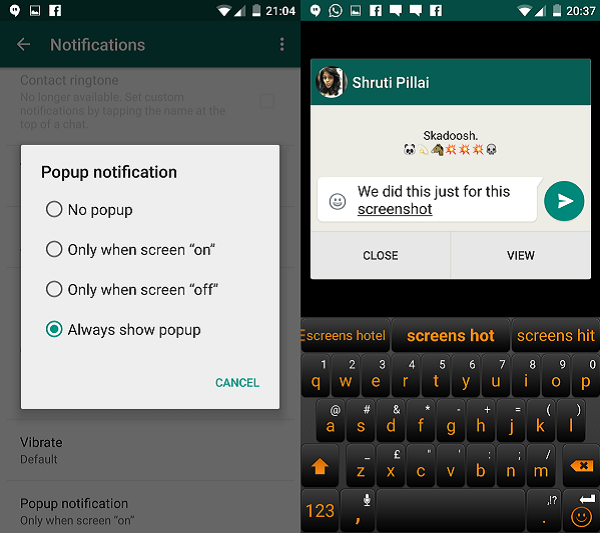
#10 You can reply to messages without even having to open the chat.
Peeping toms are everywhere. Especially on the metro. If you don't want people looking at your private chats, you can enable the pop up option. Instead of having to go to your chat to respond, you can type in your reply into the pop up and press send. Go to settings, then click on notifications and you'll see the pop up options. Choose one from four different privacy settings.
advertisement
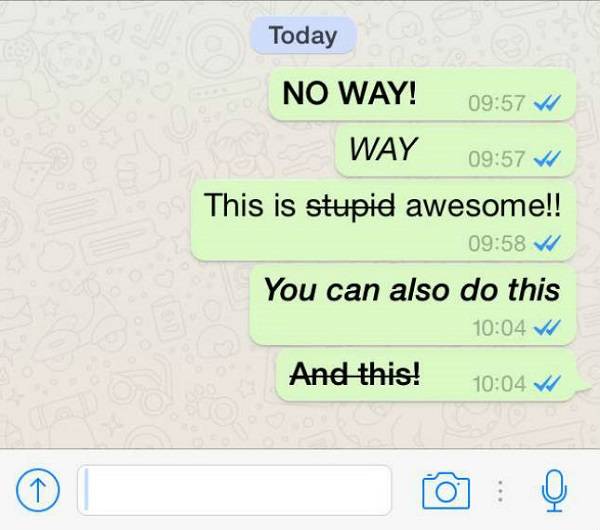
#11 You can use font styles like bold, italics and strike-through too.
One of WhatsApp's most recent feature has been the ability to customize the font of the texts you send. Use strike-through. Make them italic. Make them bold. Lets take the word hello as an example. To make it bold, type *hello*. To Make it italic, type _hello_. To use strike-through, type ~hello~.