Be a Smart iPhone User By Applying These Tips & Tricks
#1 Camera App & Volume Buttons Relation
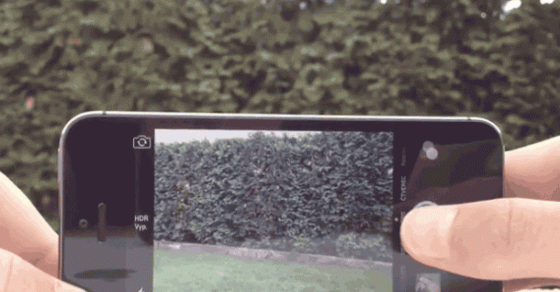
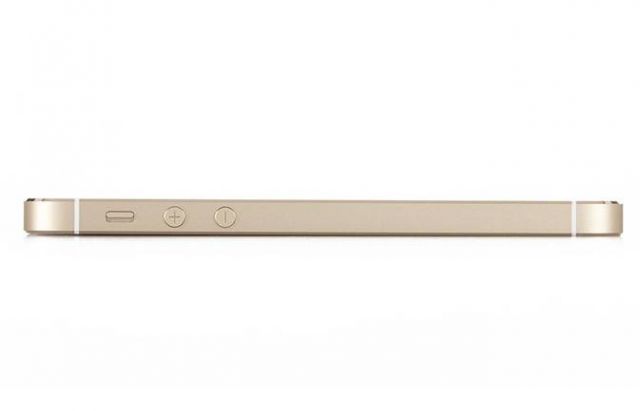
As long as the camera app is open, you can use the volume buttons to take a photos. Happy Selfie-ing
#2 Teaching Siri!
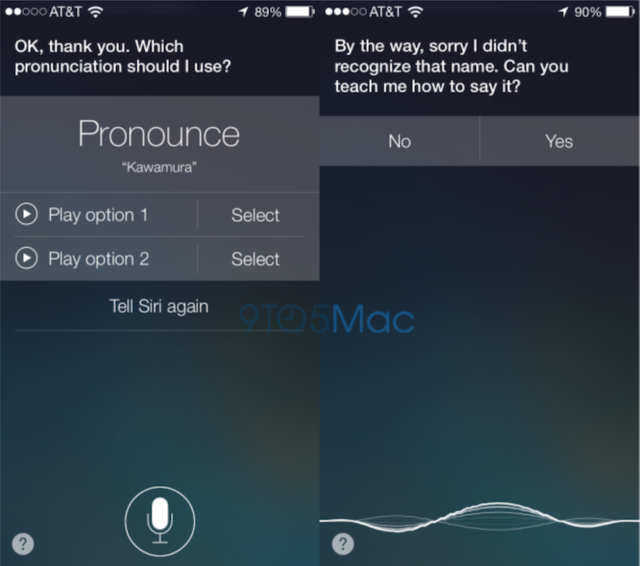
You can teach Siri how to properly pronounce words by saying, "That's not how you pronounce______ " and she will then give alternatives for you to choose the correct one.
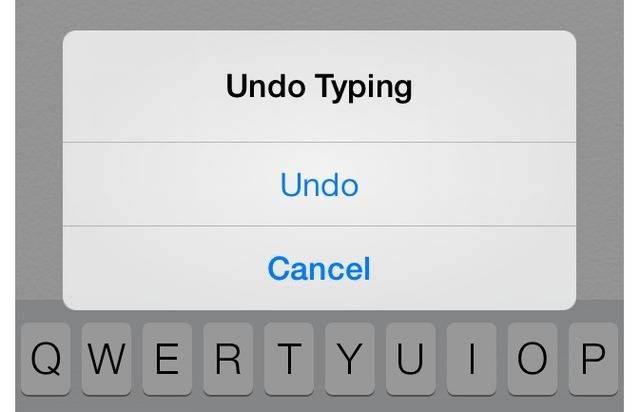
#3 The Undo Function
There is an undo function that allows you to go back if you make a mistake writing a text message, email, or editing a photo. Simply shake your phone and this option will pop up.
#4 Taking Screen Shot
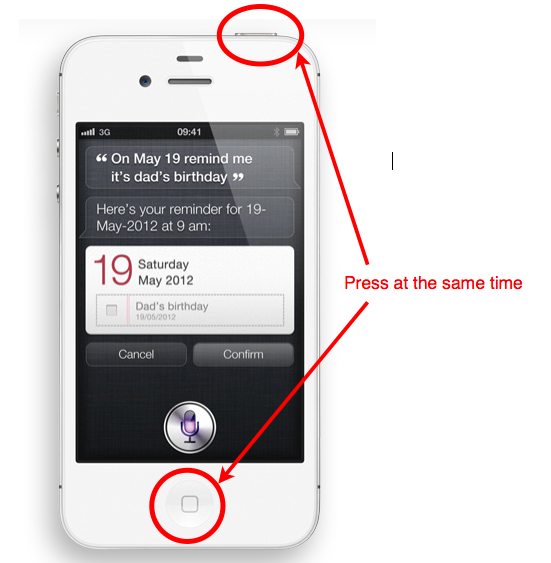
Take a screen shot by holding down the home button and the on/off button at the same time. The screen shot will then be saved in your camera roll. This also works for iPad.
#5 Compass App
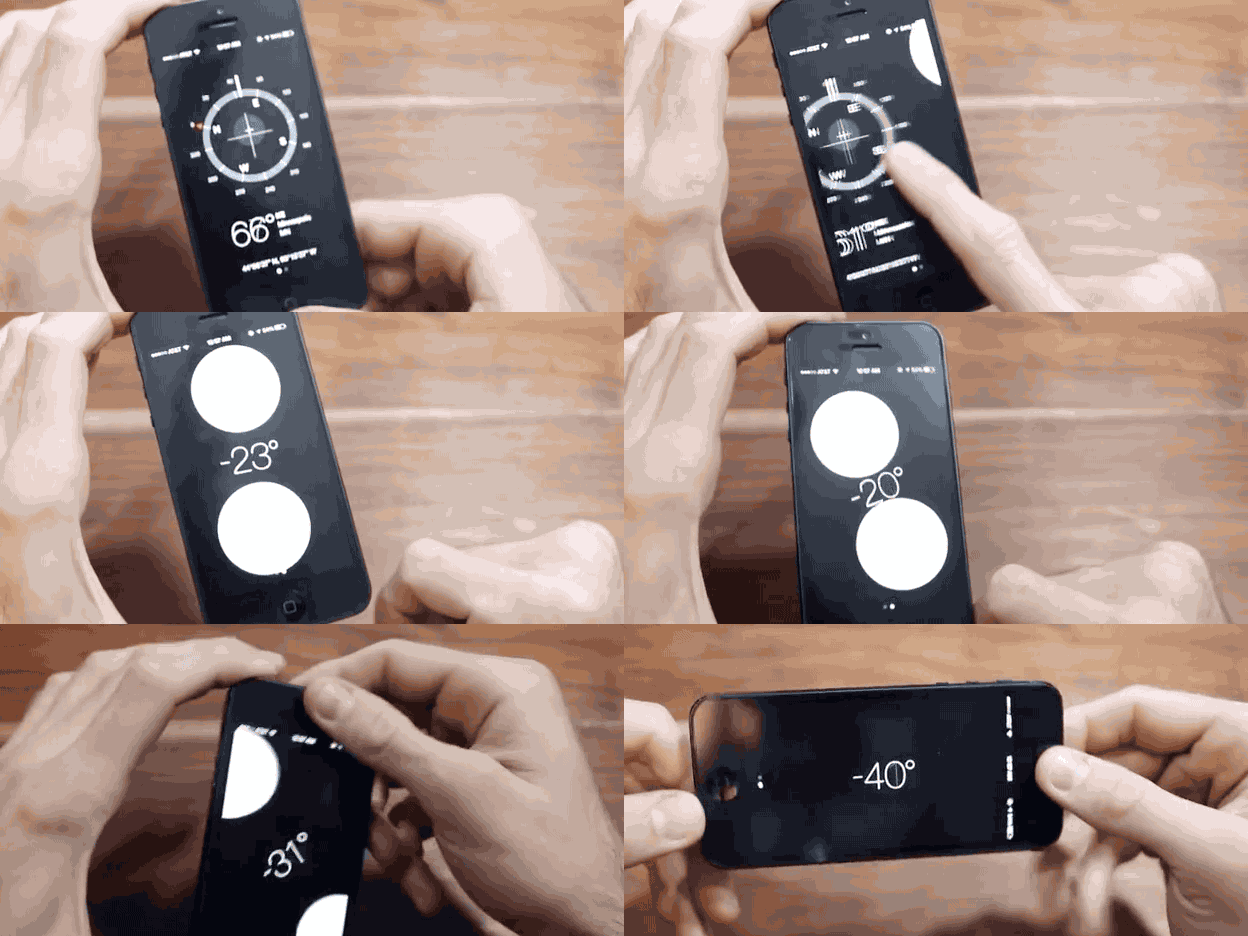
Swipe left on the Compass app and your iPhone will work as a level.
#6 Save Time in Typing Web Suffices
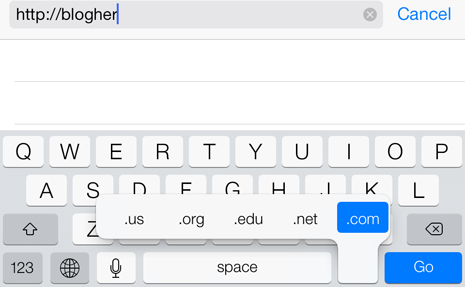
If you hold down the "." on your keyboard, a menu will pop up with a list of web suffices to choose from, saving you the time of typing it out.
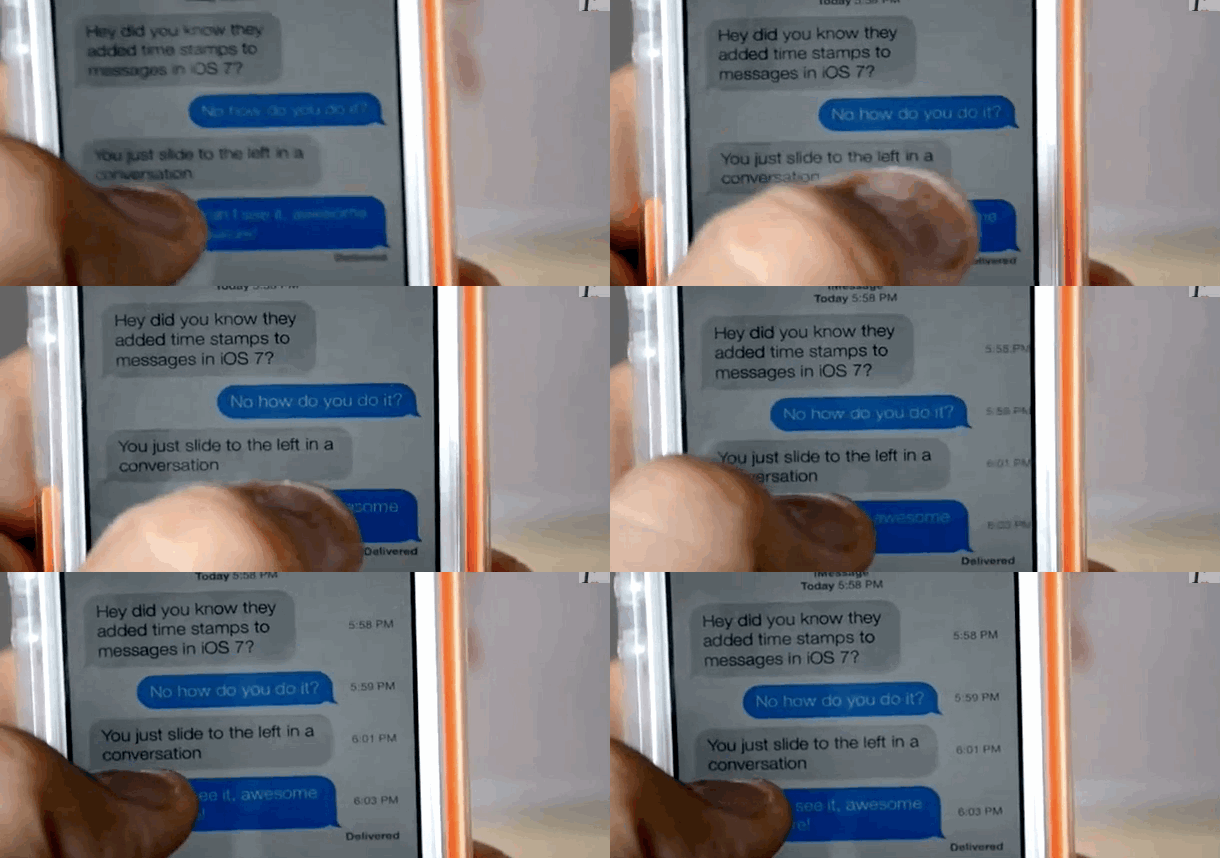
#7 See When You Sent/Received Text Messages
You can see the timestamps of your text messages by sliding your texts over to the left.
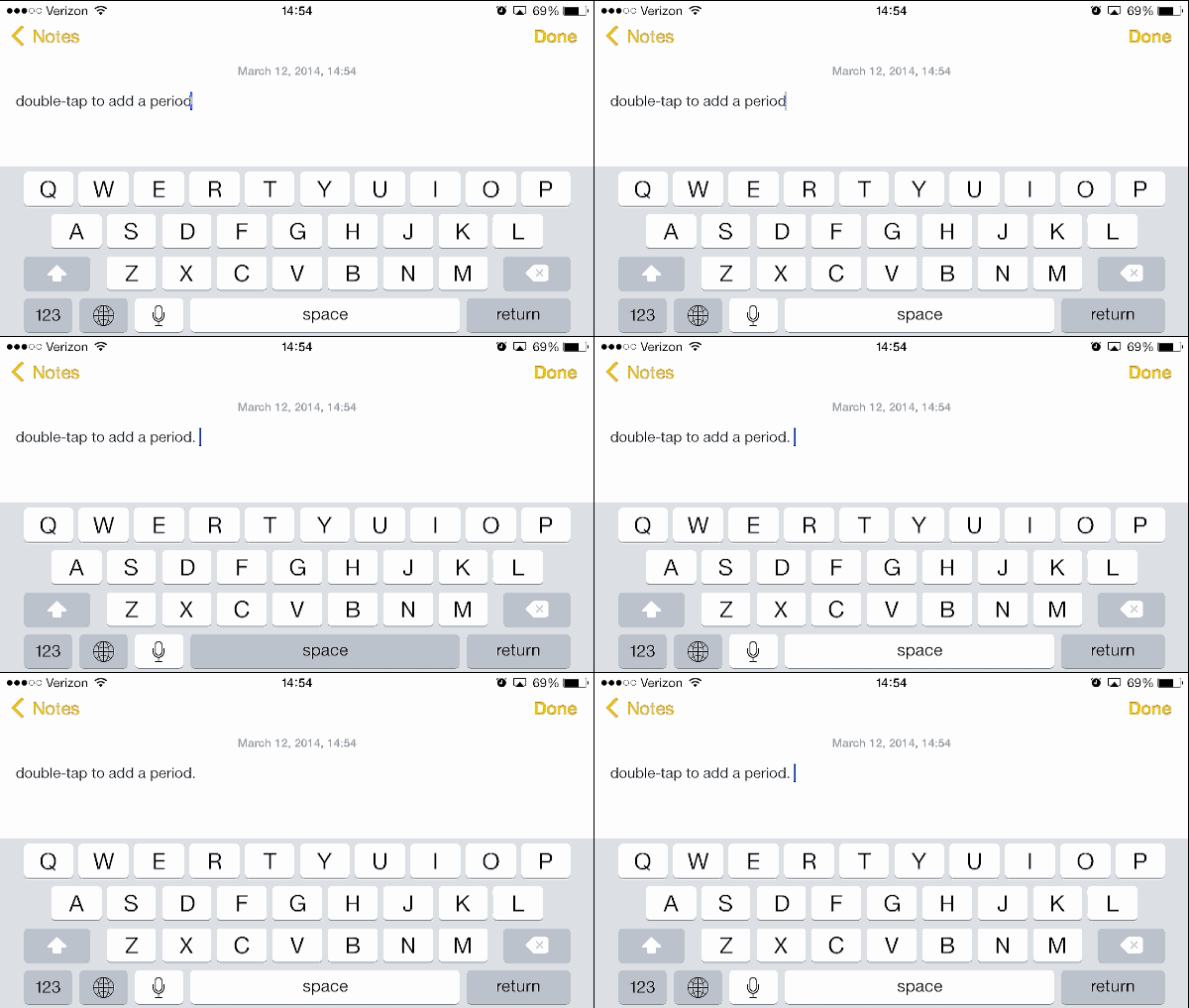
#8 Double-tapping Spacebar Magic
Double-tapping the spacebar will automatically end the sentence with a period and start a new one for you.
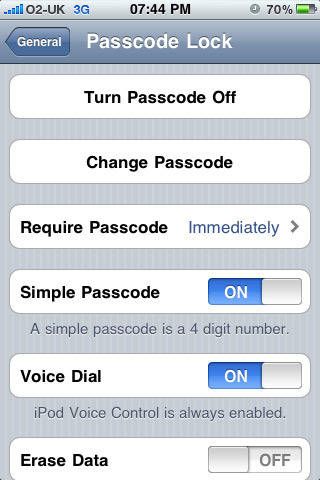
#9 Creating Passcodes With Letters
You can create a longer passcode with letters instead of numbers. Go to Settings > General > Passcode Lock and turn off "Simple Passcode."
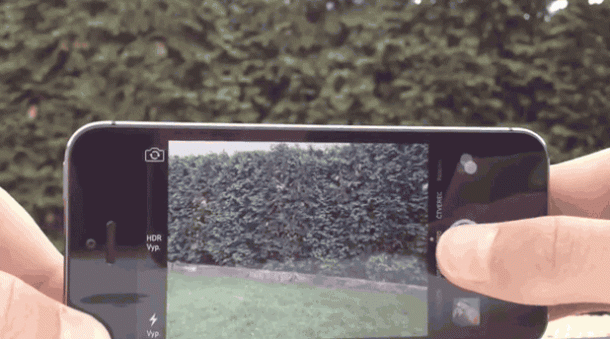
#10 Get a Perfect Shot!
By holding down the capture button in the camera app, your phone will take a series of photos so you can get the perfect shot.
#11 Change The Vibration Pattern
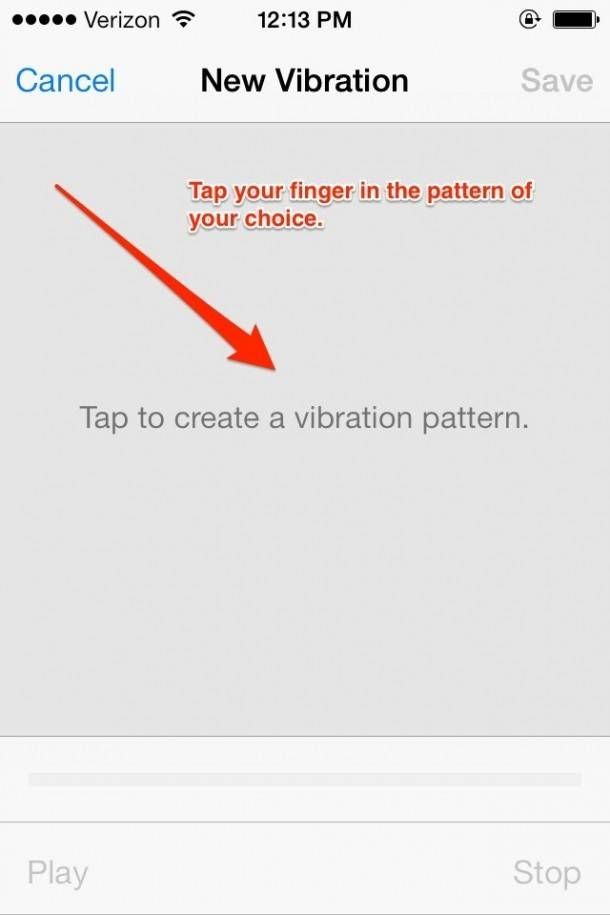
Change the vibration pattern for notifications. Go to Settings > Sounds > Ringtone > Vibration > Create New Vibration.You'll be able to tell who's calling or texting you just by the vibration.
#12 Accessing E-mail Drafts
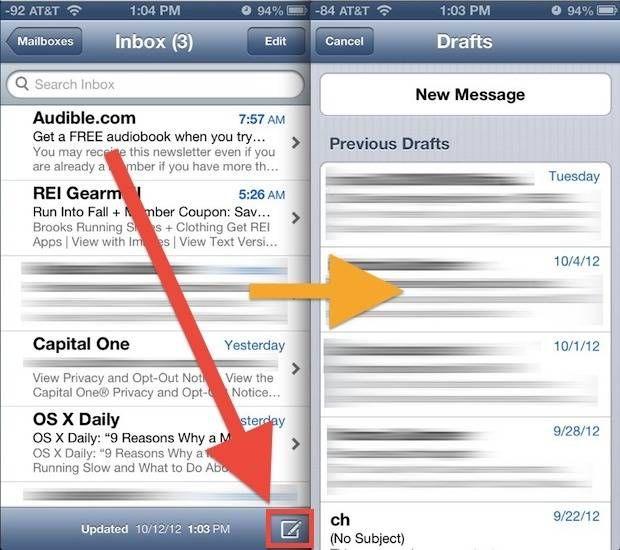
You can access all of your email drafts easily by holding down the "Compose" icon. It will then give you a list of all of your previous drafts.
#13 Get Flights Positioning!
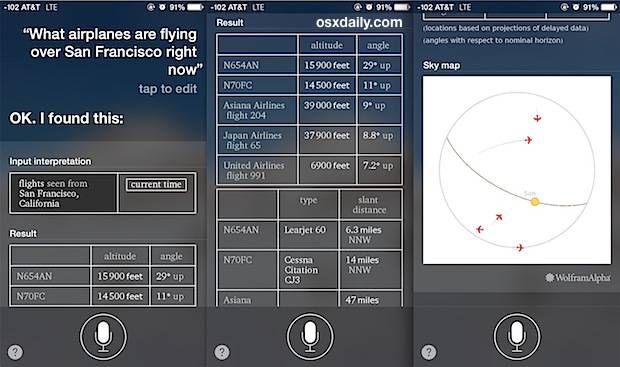
You can find out what airplanes are flying about you. Just ask Siri "what flights are overhead."
#14 Bed Time Trick!
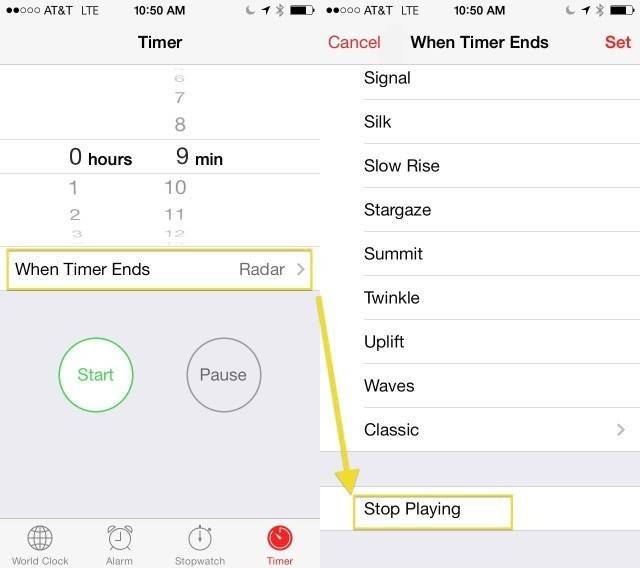
You can set a timer for listening to music or audiobooks before bed. Just launch your Clock app, choose the Timer button in the lower right and set the timer for however long you want your media to play. Then, tap "When Timer Ends," scroll to the bottom and choose "Stop Playing". Now you'll never have to turn off your music again after falling asleep.
#15 Reducing Charging Time!
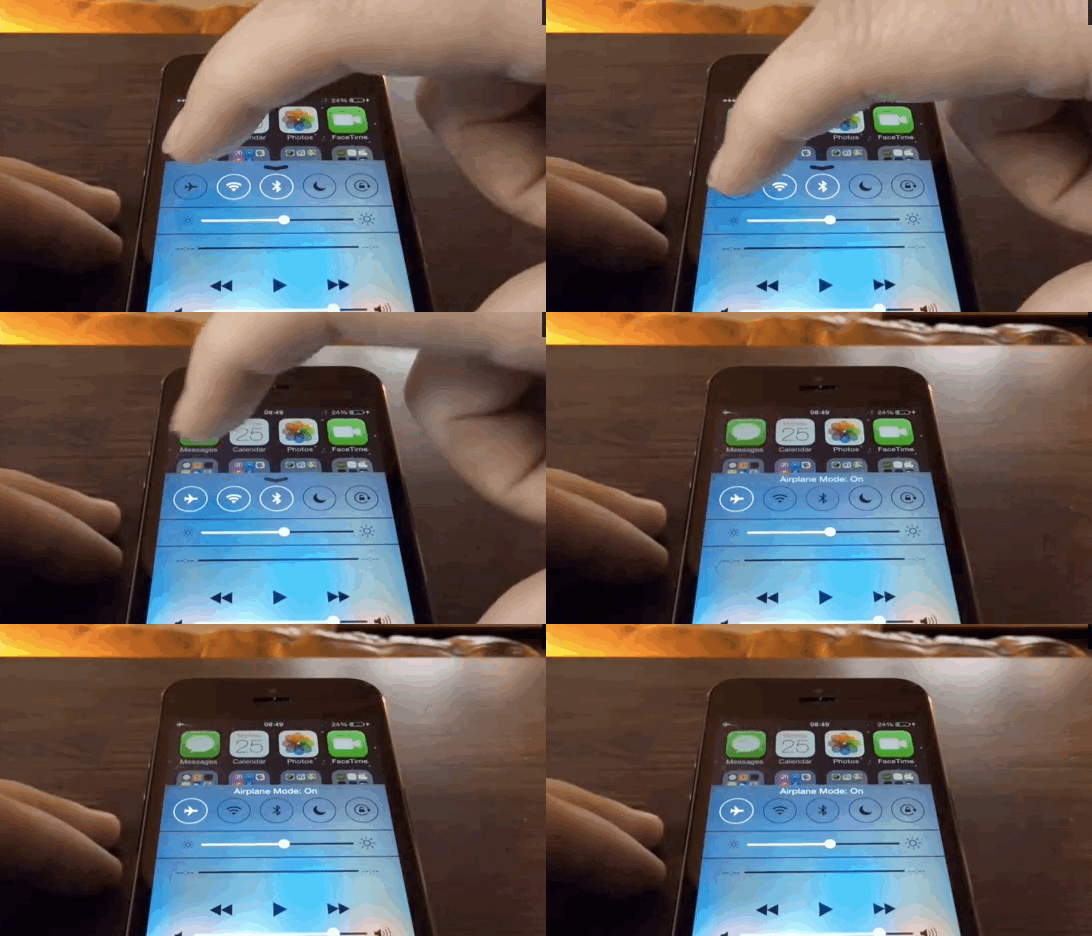
Your phone will charge much faster if you turn on "Airplane Mode" while charging.
#16 Creating Shortcut!
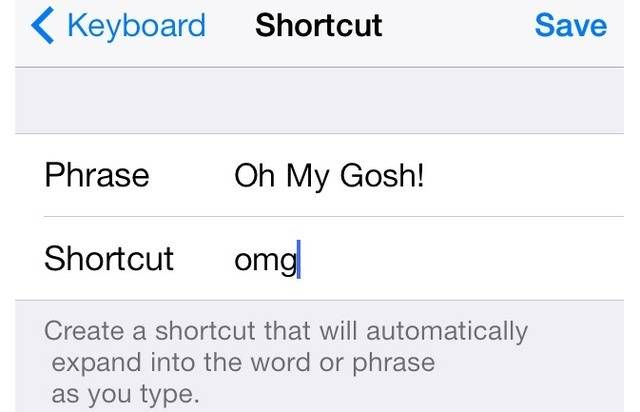
Create shortcuts in no time. Go to Settings > General > Keyboard > Shortcuts > Add New Shortcut. Enter a word or phrase that you use a lot and what you want the shortcut to be. Now, every time you type that shortcut, the whole word/phrase will appear.
#17 Control Over Streaming
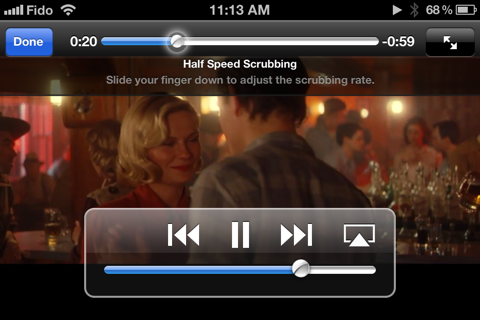
You can control the scrubbing rate of streaming video/audio by moving your finger down the screen.
#18 Speaking Up Your iPhone
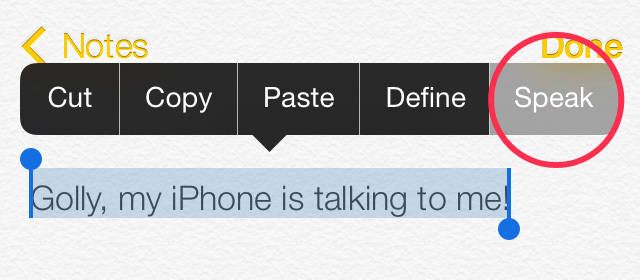
Your phone will read texts aloud. Start by going into the Settings app. Choose General, tap Accessibility, then turn on the Speak Selection feature. After you've done this, the "Speak" option will always appear when you highlight text.
#19 LED Flash for Alerts
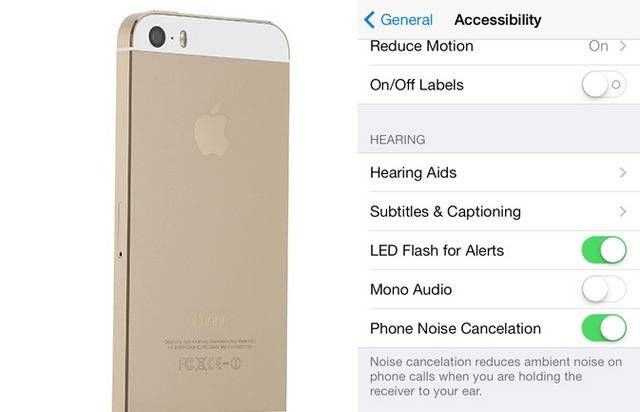
Instead of having your phone vibrate or ring when you get a call or text, you can have it emit an LED flash. Go to Settings > General > Accessibility, then scroll down and turn on "LED Flash for Alerts."